Oxlab Logo
Get Started

Install Taskion on Your Server

Installing Taskion on your local server is simple. Follow our guide and verify that everything works correctly.
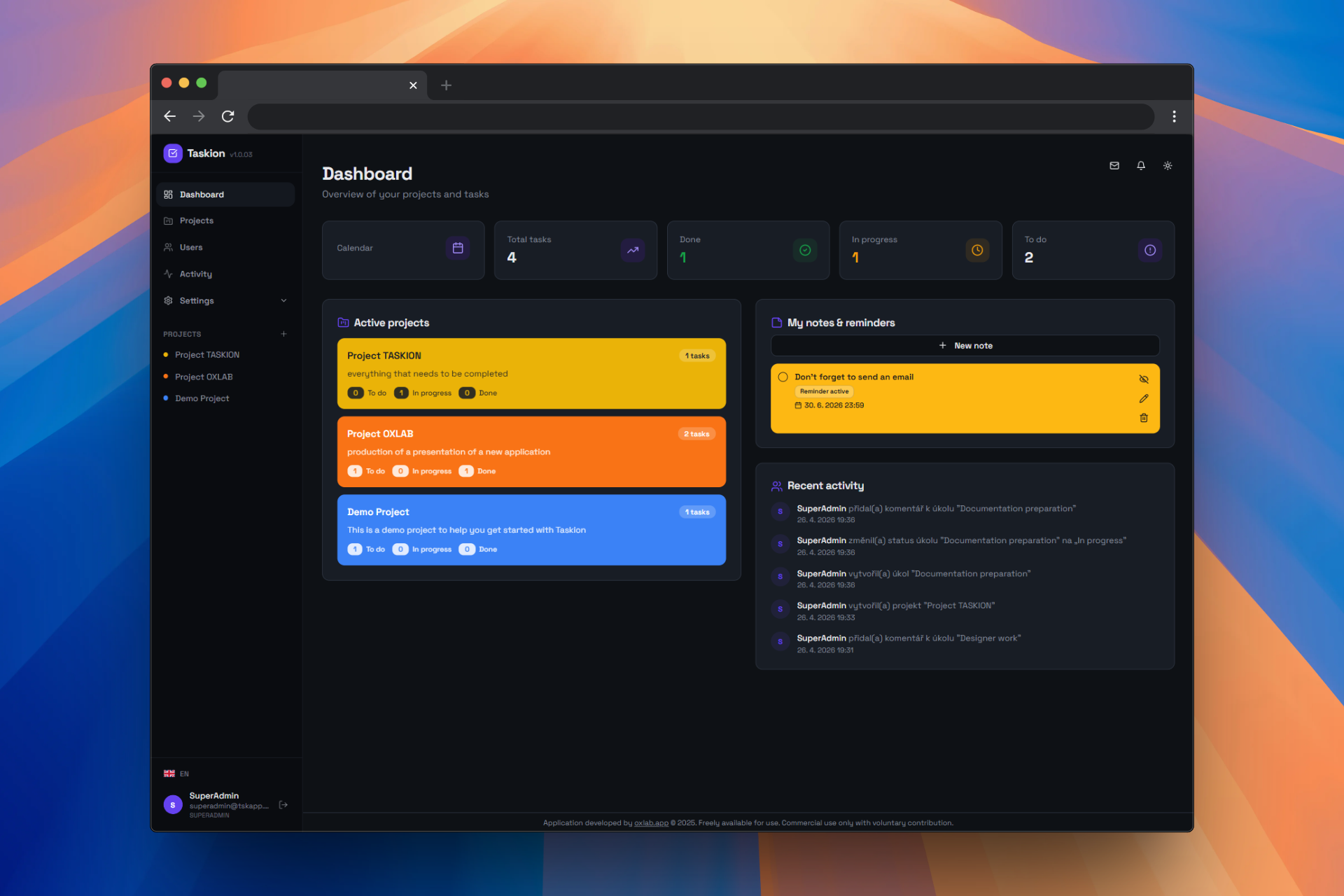
  • • Installation to localhost/taskion or to the root folder of your web hosting
  • • Verification of all PHP extensions
  • • Database connection check
  • • File permissions verification
  • • Functionality testing
Taskion installation

Installation Steps with VS Code and Node.js

1

Download and Extract

Download Taskion and copy the contents to your development folder.

Local Development (WAMP/Apache server):

  • • Download the ZIP file from our website
  • • Extract it on your computer
  • • Copy the contents to the WAMP server folder: C:\wamp64\www\taskion
  • • In the root folder you should see: src, public, package.json, vite.config.js
  • • Verify that all files are in place

Production Server:

  • • Download the ZIP file from our website
  • • Extract it on your computer
  • • Connect to your web hosting via FTP (e.g., FileZilla)
  • • Upload the contents directly to the root directory: public_html or www
  • • In the root directory you should see: src, public, package.json, vite.config.js
  • • Verify that all files are in place
2

Open in VS Code

Open the project in VS Code editor.

Steps:

  • • Launch VS Code
  • • Click on FileOpen Folder
  • • Select the Taskion project folder
  • • Wait for VS Code to load the project
  • • In the left panel you should see the project structure

Alternative - Command Line:

  • • Open command prompt (cmd.exe)
  • • Navigate to the project folder: cd C:\wamp64\www\taskion
  • • Launch VS Code: code .
3

Install Dependencies

Install all required Node.js packages.

  • • Open terminal in VS Code: Ctrl + `
  • • Run command: npm install
  • • Wait for all packages to install (may take several minutes)
  • • A node_modules folder should be created
  • • If an error occurs, try: npm install --legacy-peer-deps
4

Configure Environment

Configure the .env file for your environment.

Steps:

  • • Open .env in editor
  • • Set variables: TASKION_DB_HOST, TASKION_DB_USER, TASKION_DB_PASSWORD
  • • Save the file (Ctrl+S)

Example .env file:

TASKION_DB_HOST=localhost
TASKION_DB_NAME=taskion
TASKION_DB_USER=root
TASKION_DB_PASS=
TASKION_DB_CHARSET=utf8mb4
5

Run Installation Wizard

Run the installation wizard to create the database and tables.

  • • Open your browser and go to: https://localhost/taskion/install
  • • If your project is in a different folder, replace taskion with your folder name
  • • You should see the installation wizard
  • • Follow the instructions in the wizard
  • • The wizard will verify the database connection and create the necessary tables
6

Run Development Server

After successful installation, run the development server.

  • • In VS Code terminal, run: npm run dev
  • • You should see a message: Local: http://localhost:5173
  • • Open this link in your browser
  • • The application should be visible and functional
  • • The terminal will stay running - code changes will auto-update
7

Testing and Completion

Verify that everything works correctly.

  • • Open browser console (F12) and check for errors
  • • Verify API server connection
  • • Test basic application functionality
  • • Check that data loads correctly from the database
  • • If everything works, you're ready for development!

System Requirements

Node.js

Taskion requires Node.js version 16.0 or higher.

  • • Download from nodejs.org
  • • Verify version: node --version
  • • npm is installed automatically with Node.js

VS Code

We recommend using Visual Studio Code.

  • • Download from code.visualstudio.com
  • • Install extensions for your language
  • • Recommended extensions: ESLint, Prettier, Vue

Git

Git is recommended for version control.

  • • Download from git-scm.com
  • • Verify version: git --version
  • • Initialize repository: git init

Troubleshooting

Error: npm install failed

Package installation failed or errors occurred.

Solution:

  • 1. Delete the node_modules folder and package-lock.json file
  • 2. Run: npm cache clean --force
  • 3. Try again: npm install
  • 4. If still failing, try: npm install --legacy-peer-deps
  • 5. Verify you have the correct Node.js version: node --version

Error: Development server failed to start

The npm run dev command returns an error.

Solution:

  • 1. Verify you're in the correct project folder
  • 2. Check that package.json file exists
  • 3. Verify the node_modules folder is present
  • 4. Try restarting the terminal (close and reopen)
  • 5. Try running: npm run dev -- --host
  • 6. Check that port 5173 is not in use by another application

Error: API connection failed

The application cannot connect to the API server.

Solution:

  • 1. Open config.js file in editor
  • 2. Verify that apiUrl is correctly set
  • 3. Save config.js and restart the development server
  • 4. Try accessing the API directly in browser: http://localhost/taskion/api/status
  • 5. Open browser console (F12) and check for network errors

Error: Database connection failed

The application cannot connect to the database.

Solution:

  • 1. Verify the database server is running (MySQL, PostgreSQL, etc.)
  • 2. Check .env file - verify TASKION_DB_HOST, TASKION_DB_USER, TASKION_DB_PASSWORD, TASKION_DB_NAME
  • 3. Verify the database exists, or create it
  • 4. Database creation script is in /api/schema.sql
  • 5. Try connecting manually using tools like MySQL Workbench or pgAdmin
  • 6. Verify the database user has correct permissions
  • 7. Restart the development server

How to build for production

Prepare the application for deployment to a production server.

Steps:

  • 1. In terminal, run: npm run build
  • 2. Wait for the build to complete (a dist folder should be created)
  • 3. Upload the contents of the dist folder to your production server
  • 4. Configure your web server (Apache) for proper routing
  • 5. Verify the .env file is correctly set for production
  • 6. Test the application on the production server

Example Apache configuration (.htaccess):

<IfModule mod_rewrite.c>
  RewriteEngine On
  RewriteBase /
  RewriteRule ^index\.html$ - [L]
  RewriteCond %{REQUEST_FILENAME} !-f
  RewriteCond %{REQUEST_FILENAME} !-d
  RewriteRule . /index.html [L]
</IfModule>

Need Help?

If you have any questions or problems with the installation, please don't hesitate to contact us.

❤️ Do you like Taskion by OXLAB?

If you find Taskion useful, please share it with your friends and colleagues on social media. Your support helps us grow and improve the platform!

Thank you for helping us spread the word about Taskion! 🚀